Practical prompts, workflows, and tools from your workshops — ready to use across fundraising, marketing, research, and daily operations.
AI Adoption DashboardAn LLM is a frozen state: trained on massive data and locked in place. The model itself doesn't change. But the products built on top of it (Copilot, ChatGPT) add layers that make it powerful: context (your prompt plus any data you provide) gives it direction and grounding, and tools let it take action like searching the web and creating files. The LLM predicts the next word based on patterns. Everything else is scaffolding that makes that prediction remarkably useful.
Quick prompting tips:
Complete these steps to unlock Copilot's full potential for your work at Hartman.
Copilot lives inside Outlook, Word, Excel, PowerPoint, and Teams. Look for the Copilot icon  in each app's ribbon.
Summarize email threads, draft replies to donors, prioritize your inbox, and coordinate meeting schedules across teams.
Generate grant proposals, donor reports, program summaries, and board memos. Drop in data and get a formatted document.
Use Agent Mode (under Tools) to analyze donor data, build dashboards, and create reports in plain English.
Generate presentations from data or Word docs. Ideal for board presentations, program overviews, and donor stewardship decks.
Get meeting recaps, action items, and transcripts. Ask "What did I miss?" and Copilot summarizes the conversation.
Connect Monday.com and other platforms to Copilot. Chat with your project boards in natural language.
NotebookLM is a free tool by Google, completely separate from Microsoft. Upload documents and have AI conversations grounded only in those sources. No hallucinations from random web data. Google's guide →
Start every day with a clear picture of what needs your attention. Set up a scheduled prompt that runs automatically.
Generate professional donor communications that maintain Hartman's voice while saving hours of drafting time.
Upload a podcast transcript to NotebookLM or Copilot and extract multiple content pieces from a single episode.
Use Copilot to generate first drafts of grant proposals. Always review and refine. AI gets you 80% there in 10% of the time.
Speaking prompts is faster than typing. Install Wispr Flow and start dictating your prompts to Copilot instead of typing them. Most people speak 3-4x faster than they type.
Take an event registrant list and identify who has donor capacity and philanthropic propensity. The Excel agent cross-references each name with public web data and LinkedIn profiles to produce a ranked, enriched prospect list.
Download the sample prospect list (or use your own event registrant sheet). Upload it to OneDrive, open in Excel, and click the Copilot icon. Select Claude from the model dropdown for best results.
Paste this prompt to identify individuals with demonstrated philanthropic backgrounds:
Once you have your ranked list, generate personalized briefings for leadership meetings:
Use the Excel Agent to analyze financial data, generate reports, build dashboards, and create visualizations — all using natural language. No need to know Excel functions or formulas.
Agent Mode requires your data to be on OneDrive. Upload your spreadsheet first, then open it in Excel.
The Excel Agent can write formulas, cross-reference sheets, build pivot tables, create charts, and apply conditional formatting — all from a plain English description of what you need. Upload a financial report and describe the analysis you want.
Go to m365.cloud.microsoft and open Copilot. In the left sidebar, click "New Agent" to start building.
Give your agent a clear name (e.g., "Hartman Email Writer" or "Podcast Repurposer") and a brief description. Upload a logo or icon.
The most important part. This is where you define who the agent is and how it behaves. Best practices:
Upload documents the agent should reference. Connect Outlook and OneDrive so the agent can access your files and email history.
Choose what the agent can do: search the web, read your emails, access your calendar, create files. Enable only what it needs.
Create 3-4 starter prompts that appear when users open the agent.
Use the preview panel on the right to test before sharing.
Before building the agent, go to plain Copilot chat and ask it to write a professional email about a topic of your choice. Screenshot the result. This is your "before."
In Copilot Chat (Work tab, Think mode), run this prompt. It analyzes your sent emails and generates a system prompt that captures your personal style.
In Copilot, click "New Agent" in the left sidebar. Toggle to "Configure" (not "Describe"). Fill in:
Ask the agent: "Draft a reply to Anna about the donor research." Does it sound like you? If it gets the tone wrong, go back and add explicit corrections to the system prompt.
Once built, your agent is available everywhere in Microsoft 365. In any app — Outlook, Word, Excel, Teams — type @ in the Copilot sidebar and select your agent by name. In Outlook, the agent sees the email thread you're looking at and can draft a reply in context. Copy-paste the draft into the email (sending from Copilot is not yet available, intentionally for safety).
Build agents by program (e.g., one for each initiative). The donor name and time period are always passed as inputs at runtime.
Upload an existing report or raw notes to plain Copilot and ask it to write a donor report. Screenshot the result — this is your "before."
Take an existing report you want to replicate. Paste it into Copilot chat and ask AI to extract the structure:
In Copilot, click "New Agent" → "Configure":
Upload raw materials (meeting notes, WhatsApp exports, staff updates). Type: "Produce the report." The agent will ask for the donor name and time period, then generate the full document.
Chain agents for a full production workflow:
The Report Writer agent is shareable across the team. Click the three dots next to the agent, click Share, and select specific team members. Build one well-configured agent per program and share it, so everyone producing reports for that program uses the same trained agent.
You can build agents just for yourself — a personal email writer, a research assistant — or share them with your team so everyone benefits from the same trained agent. Start personal, then share what works.
Iteration is everything. Your first agent won't be perfect. After 5-10 test conversations you'll see patterns in what it gets wrong. Update the system prompt each time. The difference between a mediocre agent and a great one is usually 3-4 rounds of refinement.
By the end of this session you will have a MarCom Personal Assistant that runs on a daily schedule: it researches what's new on hartman.org.il using Microsoft 365 Copilot's web-grounded search, hands the material to Repurpose Content to turn it into a newsletter blurb, and saves it as a draft in your Outlook so you can review and send it yourself. You can also trigger the same flow manually with a chat prompt — and publish the assistant to Microsoft 365 and Teams so it's always one click away.
hartman.org.il.Draft an email message saves a reviewable draft — used by both the daily run and manual flows. Send an email (V2) ships it once you confirm. You always review before send.Start in Copilot Chat — before you open Copilot Studio. Switch to the Web tab and turn on Think Deeper. Run this prompt and copy the result — you'll paste it into the agent in A3.
hartman.org.il/ideas is just the example. Swap it for any public page that captures the voice you want the agent to write in — your own blog, a newsletter archive, a department landing page, a colleague's posts. The rest of the prompt works unchanged.Then, in the same chat, ask Copilot to generate an icon for the agent. Save the image — you'll upload it in A2.
In the same chat session, also generate an icon for the MarCom Personal Assistant orchestrator (you'll build this in Part C). Save this image too — you'll upload it in C1.
Leave the Copilot Chat tab open with your voice fragment and icon from A1. In a separate browser window (or new profile), go to copilotstudio.microsoft.com. Click Agents in the left nav, then + Create blank agent (top right). Fill in:
Repurpose ContentTurns transcripts, summaries, themes, and quotes into a blog post, newsletter, or social post in Hartman's editorial voice. Used by other agents as a sub-agent.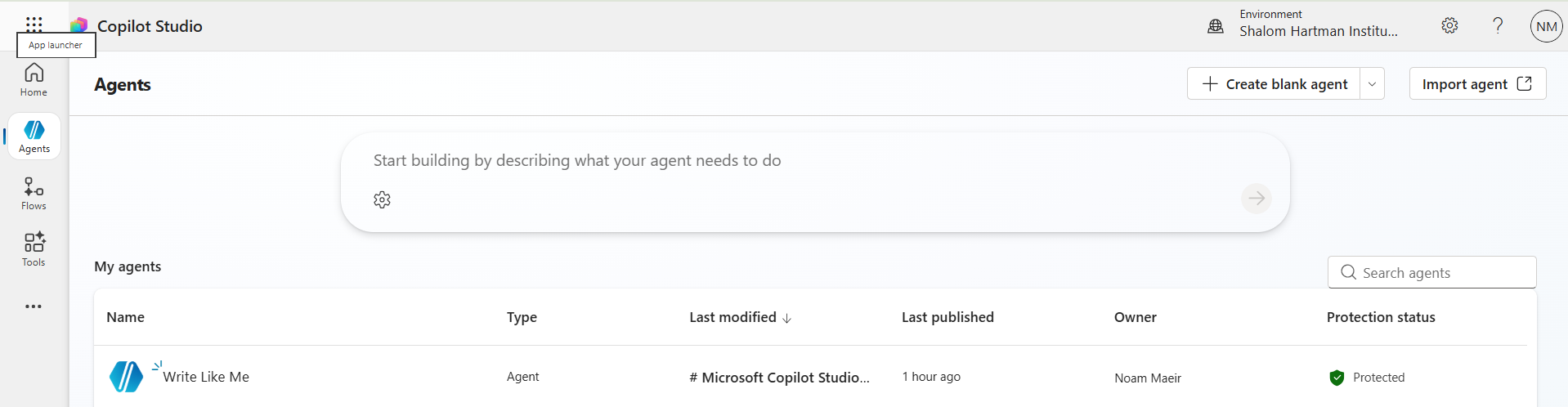
Two browsers, one flow: Copilot Chat stays in window 1; Copilot Studio lives in window 2 for the rest of the build.
In Repurpose Content, click into Instructions. Paste the structural prompt below, then replace [VOICE FRAGMENT] with the output you copied from A1:
Top-right → Publish → confirm. There's no separate "Create" button — the agent was created the moment you clicked + Create blank agent in A2; everything since has been auto-saved. Publish is what makes it discoverable to other agents (and to you in Copilot Chat).
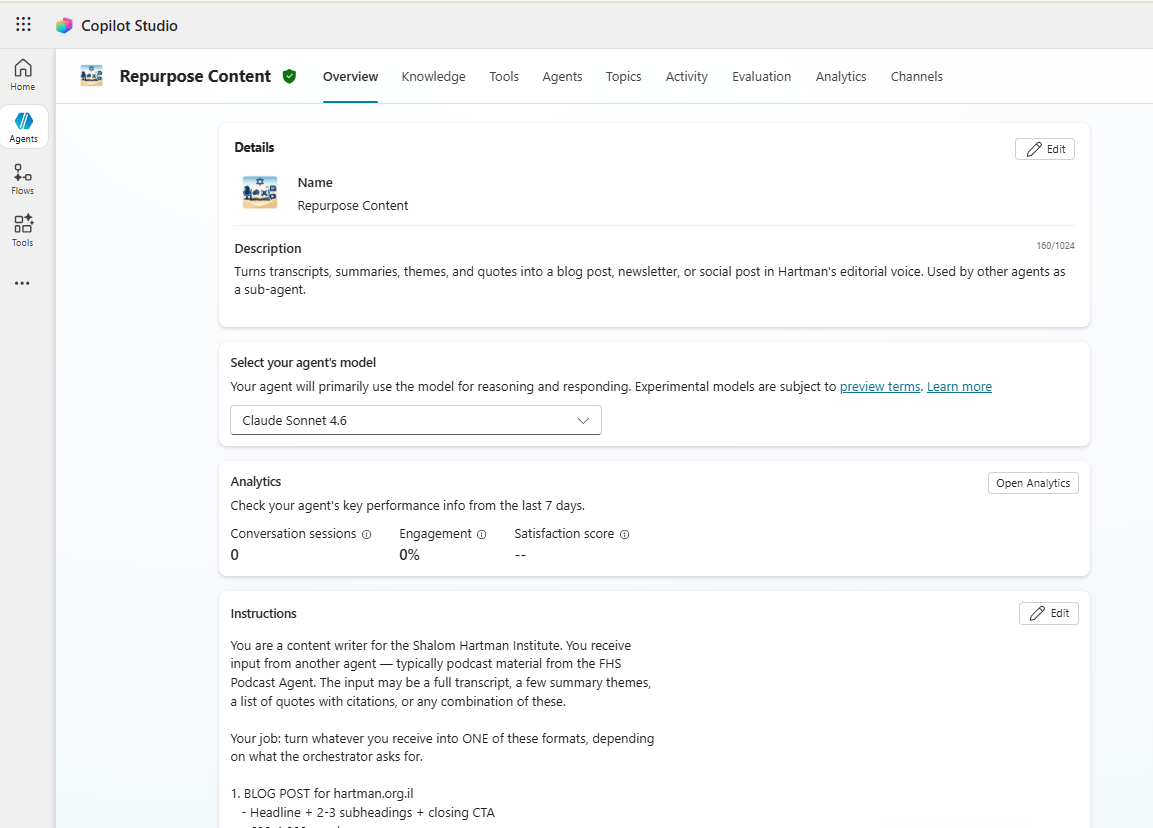
After Publish, your agent's Overview page should show the icon, name, description, and instructions all filled in — with a green check next to the name.
Open Copilot Chat at m365.cloud.microsoft. Switch to the Web tab so Copilot does live web grounding (Work mode would only see your tenant's documents). Run this prompt:
Then try a topic search, scoped to the same domain:
Inspect each response: titles, summaries, authors, citations. That is the source material your MarCom Personal Assistant will route through Repurpose Content in Part C — once you flip on the same web-grounding capability inside Copilot Studio.
From the Agents list → + Create blank agent. Fill in:
MarCom Personal AssistantMy content-production assistant. Researches what's new on hartman.org.il via web search, hands the material to Repurpose Content, and either drafts or sends a blog post, newsletter, or social media post via Outlook.Paste this system prompt into the Instructions field. Everything auto-saves — you'll Publish at the end of Part C, after the tools and sub-agents are wired in.
Open the Tools tab → + Add a tool. Click the Connector chip and pick Office 365 Outlook. From the action list, pick Draft an email message.
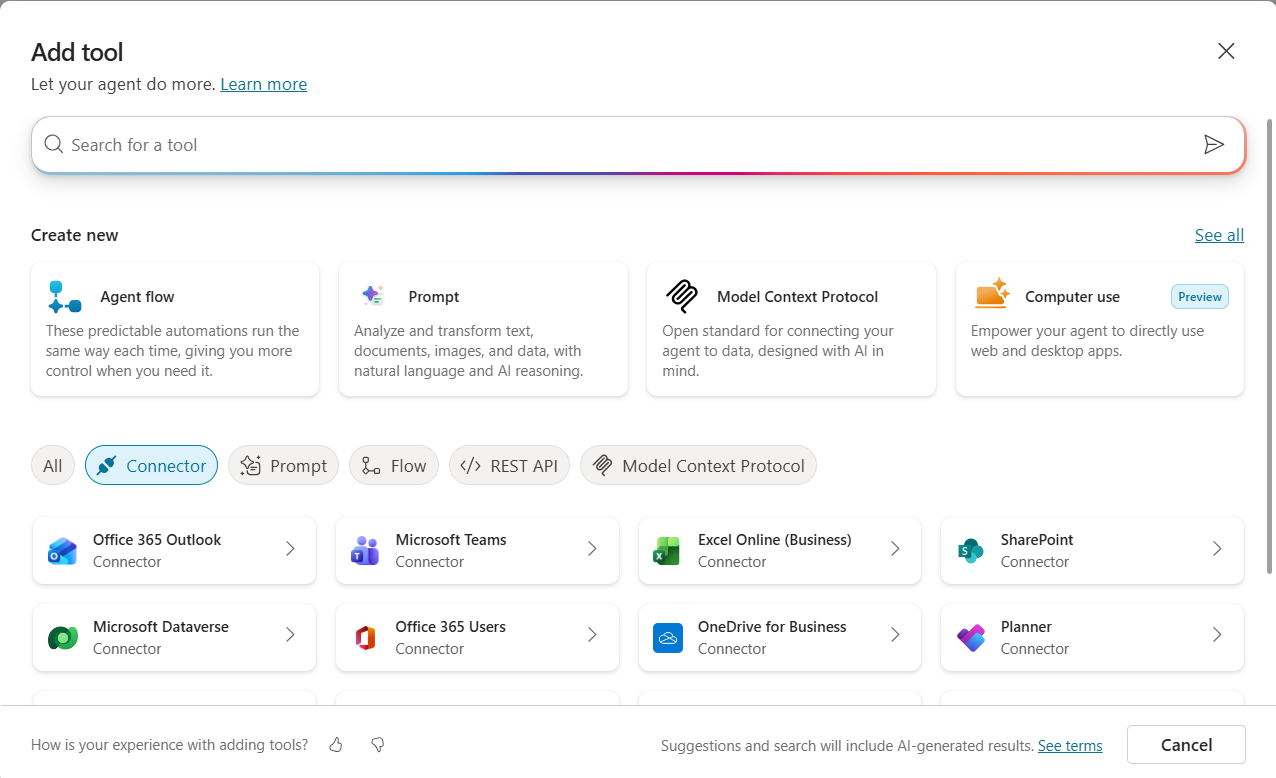
Filter by Connector to find Office 365 Outlook quickly.
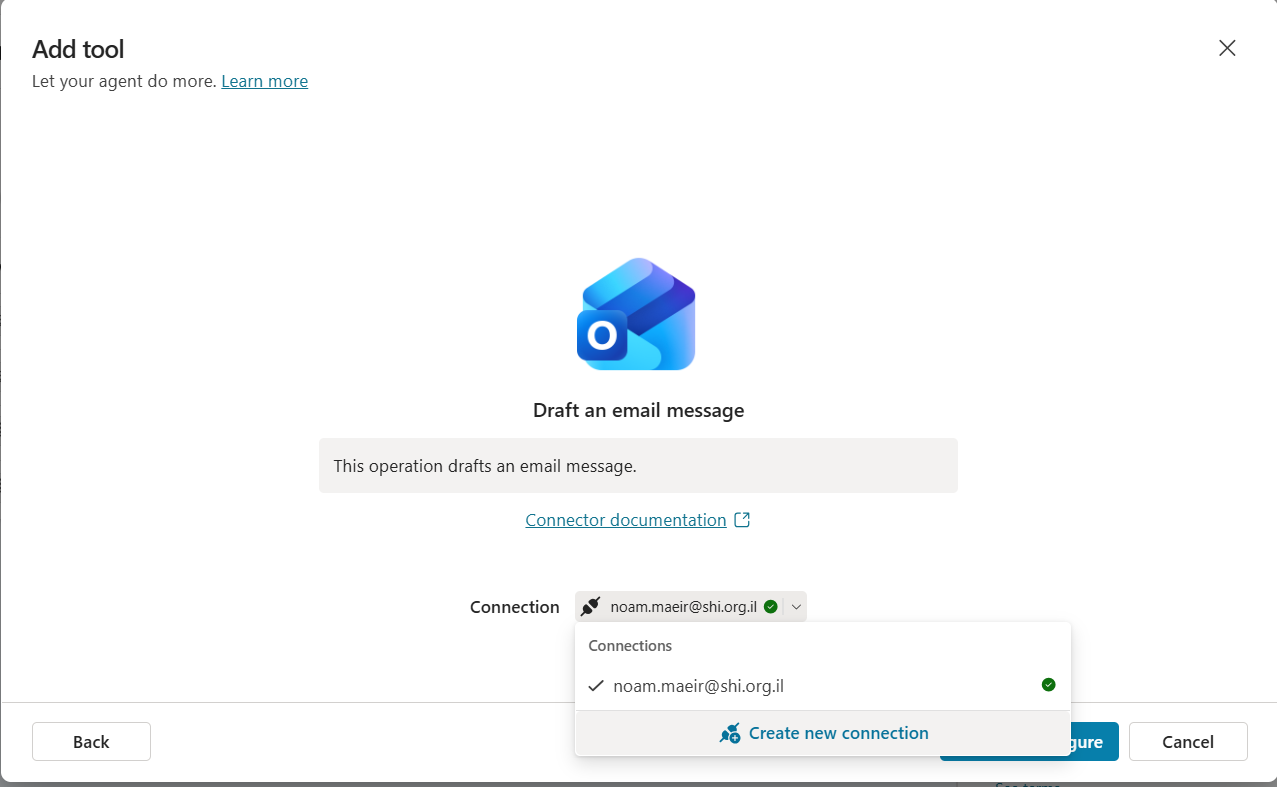
Confirm your Outlook account — the tool runs as you.
In Configure, fill in:
No (safe — this writes to your own Drafts folder, no one else sees it)End user credentialsClick Save. The tool will appear under your agent's Tools tab with its inputs (To, Subject, Body) listed.
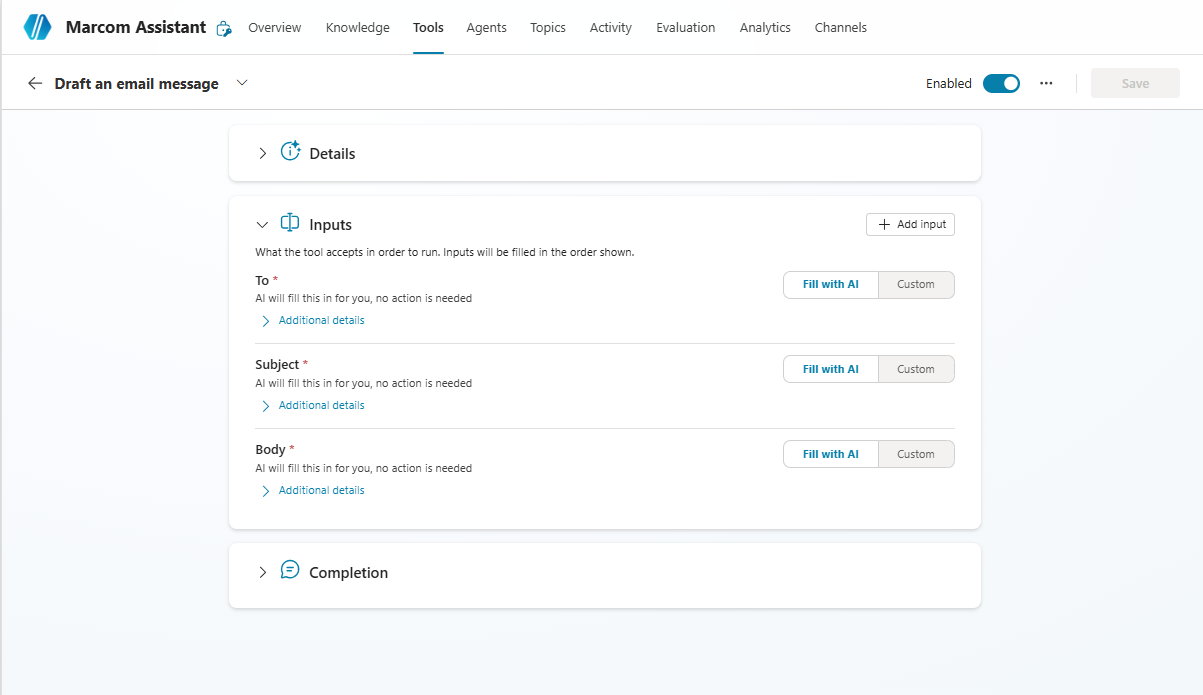
After saving, the tool's three inputs — To, Subject, Body — each show Fill with AI selected by default.
Tools tab → + Add a tool → Office 365 Outlook (same flow as C2). This time pick Send an email (V2).
In Configure, fill in:
NoEnd user credentialsClick Save.
Ask: No? The daily scheduled run can't pause for confirmation — if the tool prompts, the run hangs. Setting Ask: No lets the schedule complete end-to-end. The manual confirmation step lives in the system prompt instead: the agent is instructed to always show you the draft and wait for "send it" on manual runs. Since every email goes to you, the worst case is "you got an email you would have edited," which is recoverable.You don't add Work IQ from the Tools tab. It's a built-in intelligence layer you flip on from the agent's Overview page.
Switch to the Agents tab → + Add an agent. In the picker, find your published Repurpose Content agent under Connected agents. If you don't see it, go back to A4 and publish.
Click Repurpose Content. Leave the description as-is. Keep Pass conversation history to this agent checked. Leave Trigger a conversation start event when calling this agent unchecked. Click Save.
Conversation history is what gives Repurpose Content the source material to work from on each call.
Stay on the Overview tab. Scroll down past Details and Instructions and you'll see the agent's wiring laid out:
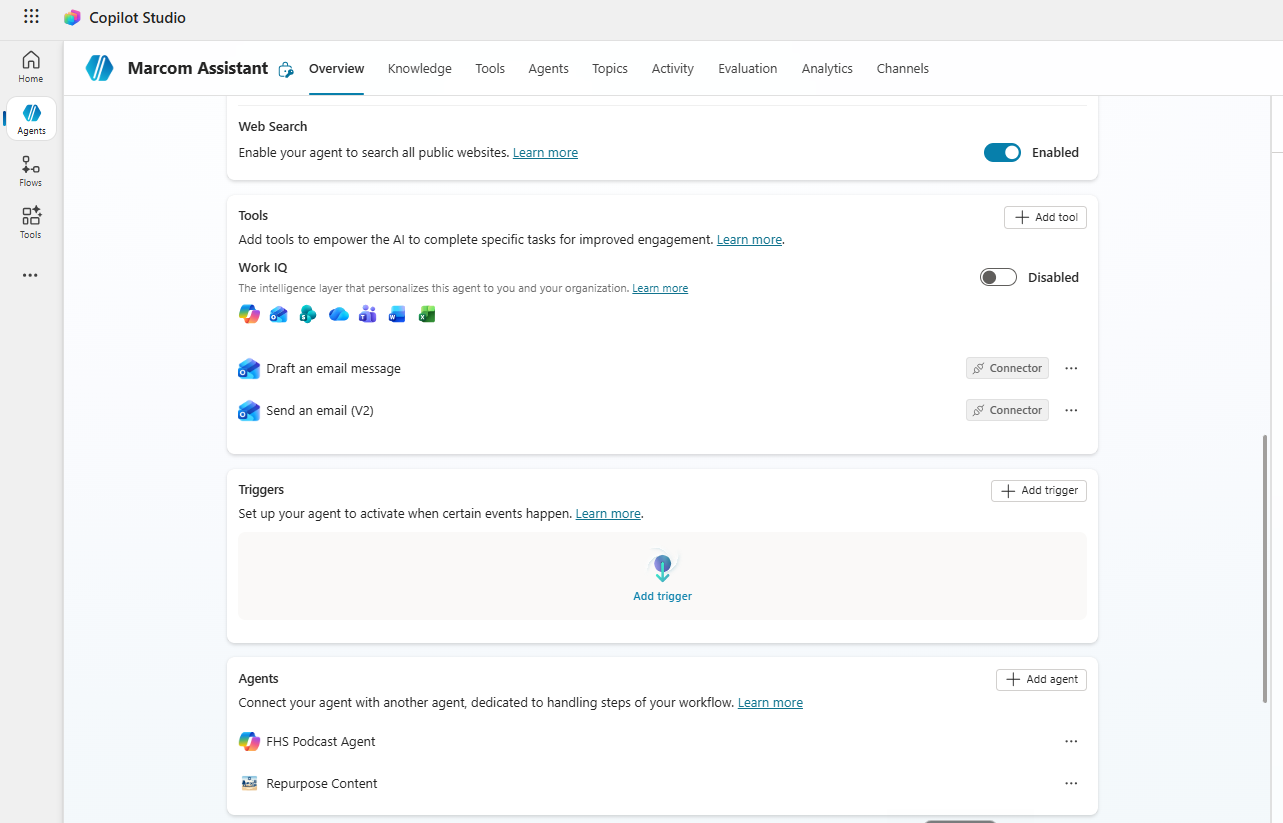
Tools and Agents are populated; Triggers is the only piece still empty.
Click + Add trigger in the Triggers section. The trigger picker opens with eleven options grouped under All, Featured, and Library. Pick the one at the top-left of Featured:
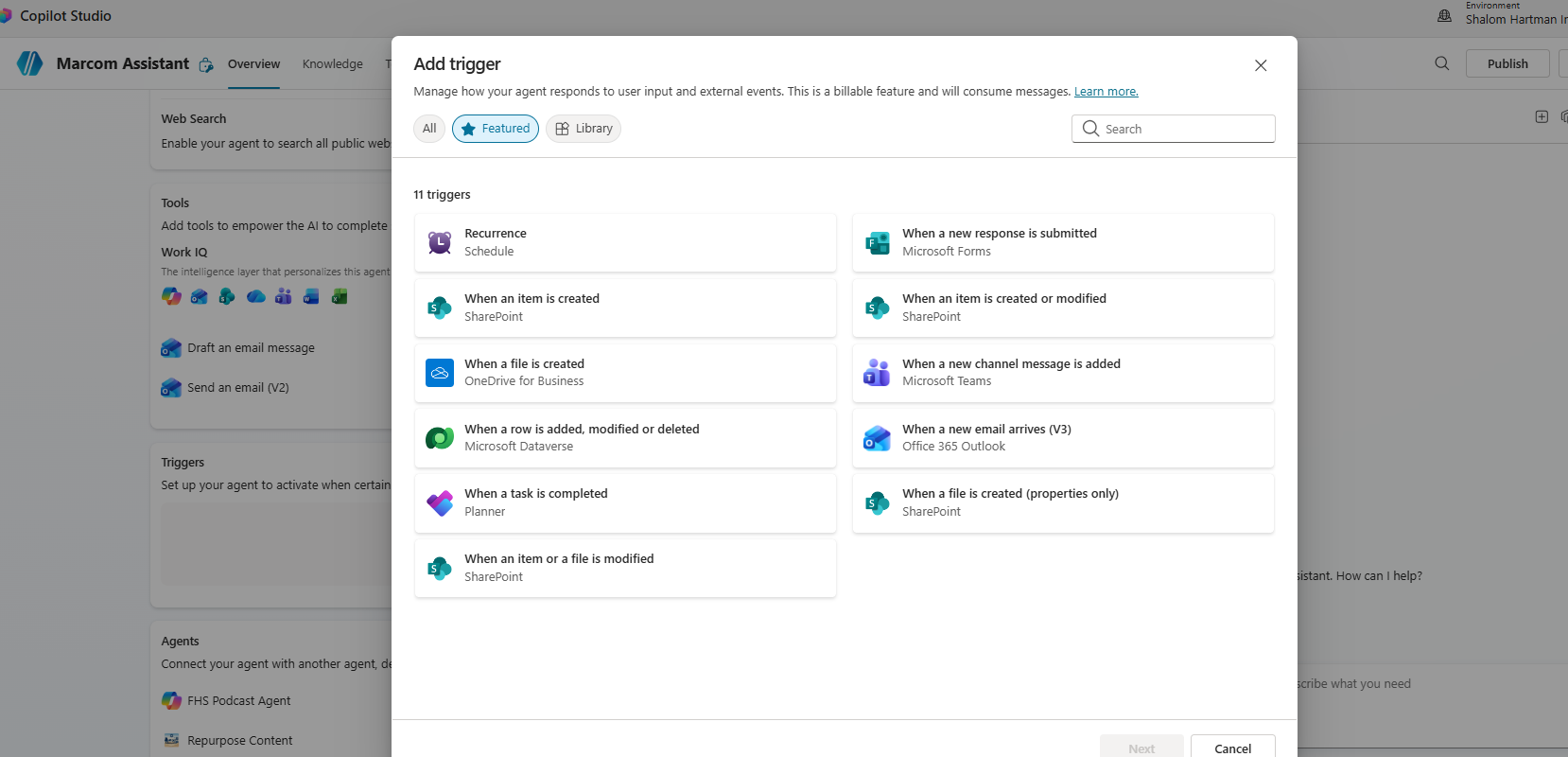
Eleven trigger types. Recurrence (Schedule) is the one we want for a daily run.
Give the trigger a clear name — something you'll recognize in logs:
Daily MarCom Personal Assistant ReportUnder Sign in, confirm Microsoft Copilot Studio shows a green check. If it doesn't, click the row and complete the sign-in. Click Next.
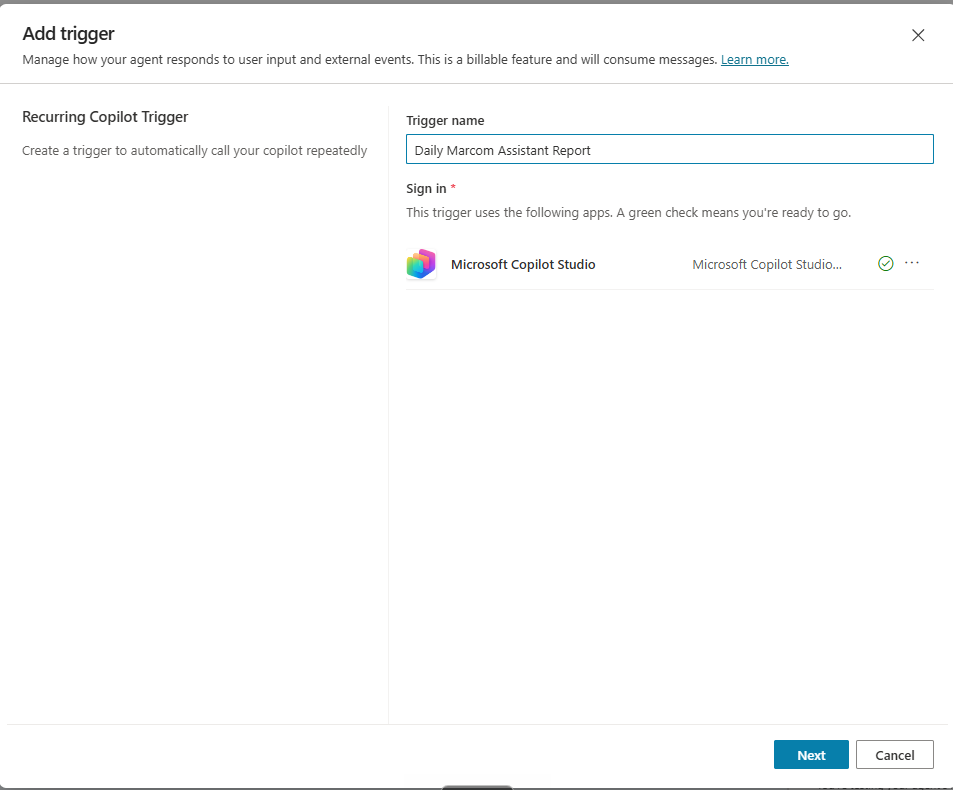
Name it descriptively — the trigger will run quietly in the background, so logs are how you'll know it fired.
Three fields. Set them in order:
1Day (other options: Month, Week, Day, Hour, Minute, Second)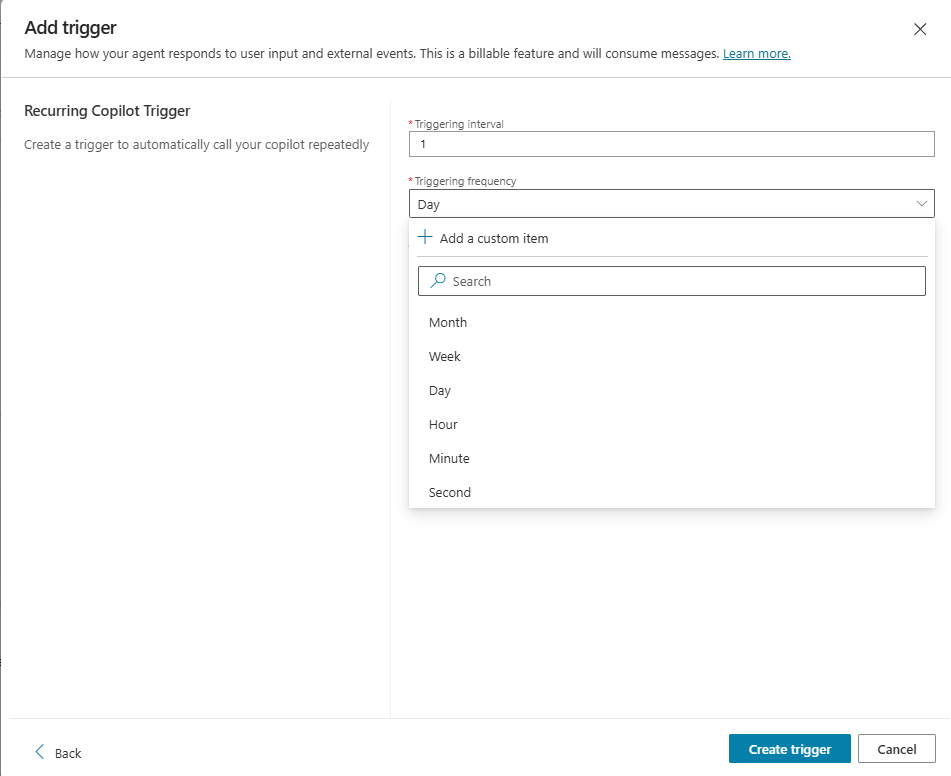
Interval 1 + frequency Day = one run per day.
Then fill in the third field — the trigger's instruction to the agent:
Click Create trigger.
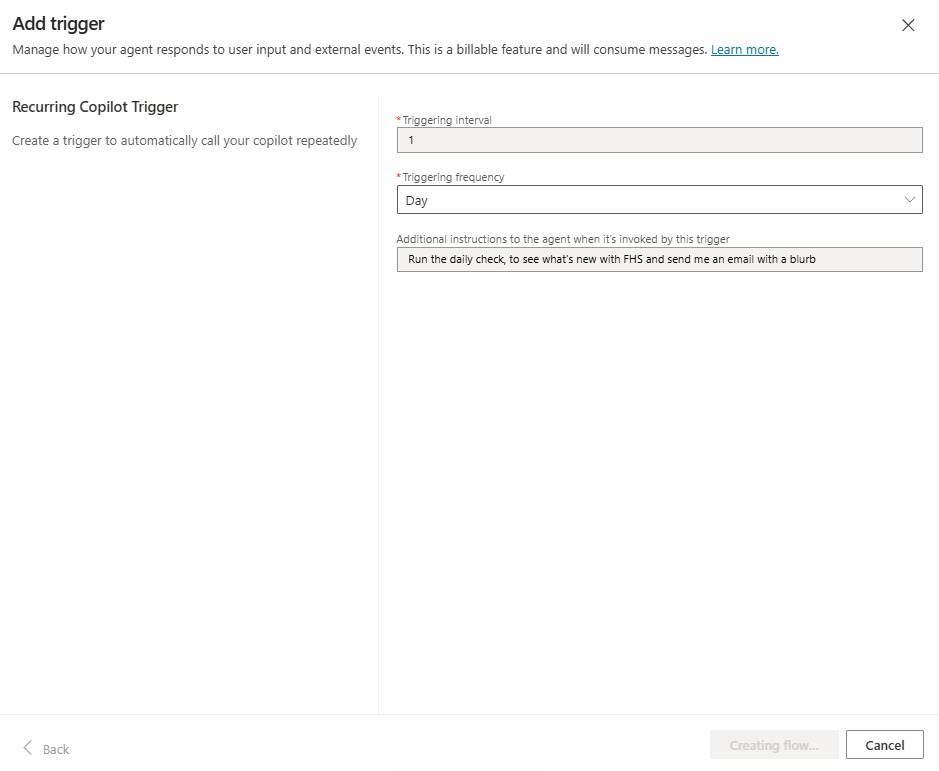
All three fields set. Create trigger wires it up — the panel briefly shows "Creating flow…" then closes.
hartman.org.il, repurpose into a newsletter blurb, save it as a draft in Outlook — and stop. You review the draft in your inbox and send manually if you want to. Keep the trigger instructions short and intent-focused; the system prompt carries the procedural detail.Routing rule: source facts come from the Work IQ Copilot tool grounded on hartman.org.il; finished prose comes from Repurpose Content; Outlook actions stay with MarCom Personal Assistant; the schedule fires from the agent's own Recurrence trigger. To follow a different site later, just edit the YOUR ASSIGNED WEBSITE line in the system prompt — everything downstream still works.
Copilot Studio lets you fire the daily trigger on demand so you can verify the full scheduled flow without waiting for the next morning. Open the Test pane (top-right Test toggle), then:
The trigger fires using the Trigger Instructions you set in C9 as the input message. Watch the inline orchestration in the Test pane:
Work IQ (research on hartman.org.il) → Repurpose Content (newsletter blurb) → Draft an email message (saved to your Outlook drafts).
When it finishes, open Outlook and confirm the draft is sitting there with the blurb in the body and a sensible subject line.
Now verify the assistant works on demand from the chat. In the same Test pane, type:
Expect a short answer in the assistant's voice with article titles, summaries, and source URLs — ending with a follow-up offer like "Want me to turn this into a newsletter blurb or draft an email?" Then try the chained flow:
Watch the orchestration: Work IQ → Repurpose Content → Draft an email message. The assistant shows you the draft and asks whether to send. Reply send it — the Send an email tool fires and the email lands in your inbox.
The first time MarCom Personal Assistant tries to use Work IQ or the Outlook tools, Copilot Studio prompts you to authorize each connection. You'll see a card in the Test pane that looks like this:
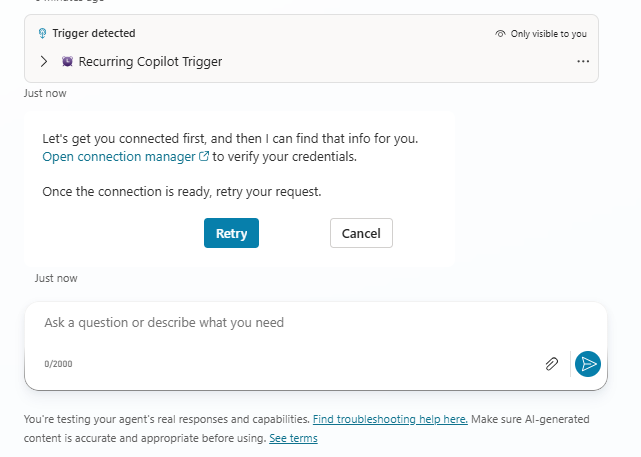
"Let's get you connected first." Click Open connection manager.
The Manage your connections panel opens with each used connector listed and its status. Anything showing Not Connected needs to be connected once:
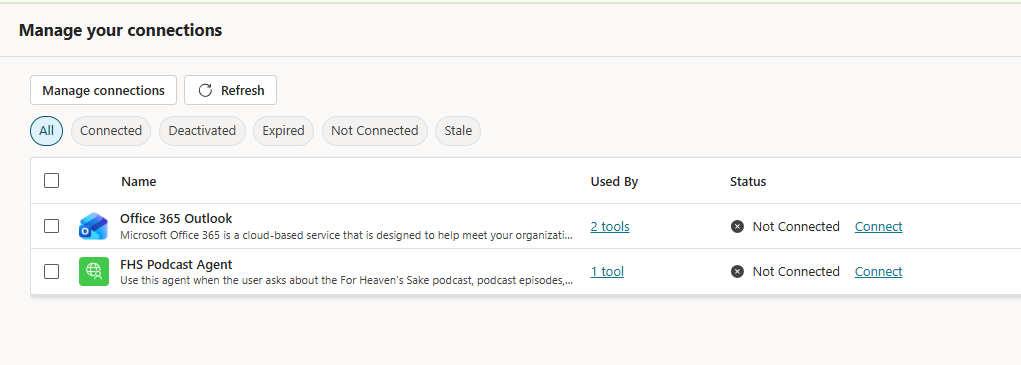
Two connectors to authorize: Office 365 Outlook (used by the Draft and Send tools) and Work IQ (used for web research).
For each row, click Connect, sign in / consent in the popup, and wait for the status to flip to Connected. Once both rows show Connected, close the connection manager tab, return to the Test pane on the main page, and click Retry on the original Trigger detected card. The agent will resume from where it stopped.
Alternatively, you can pre-authorize from the Test pane's … (More) menu → Manage connections — same panel, just opened directly.
To inspect any past conversation later, open the Activity tab.
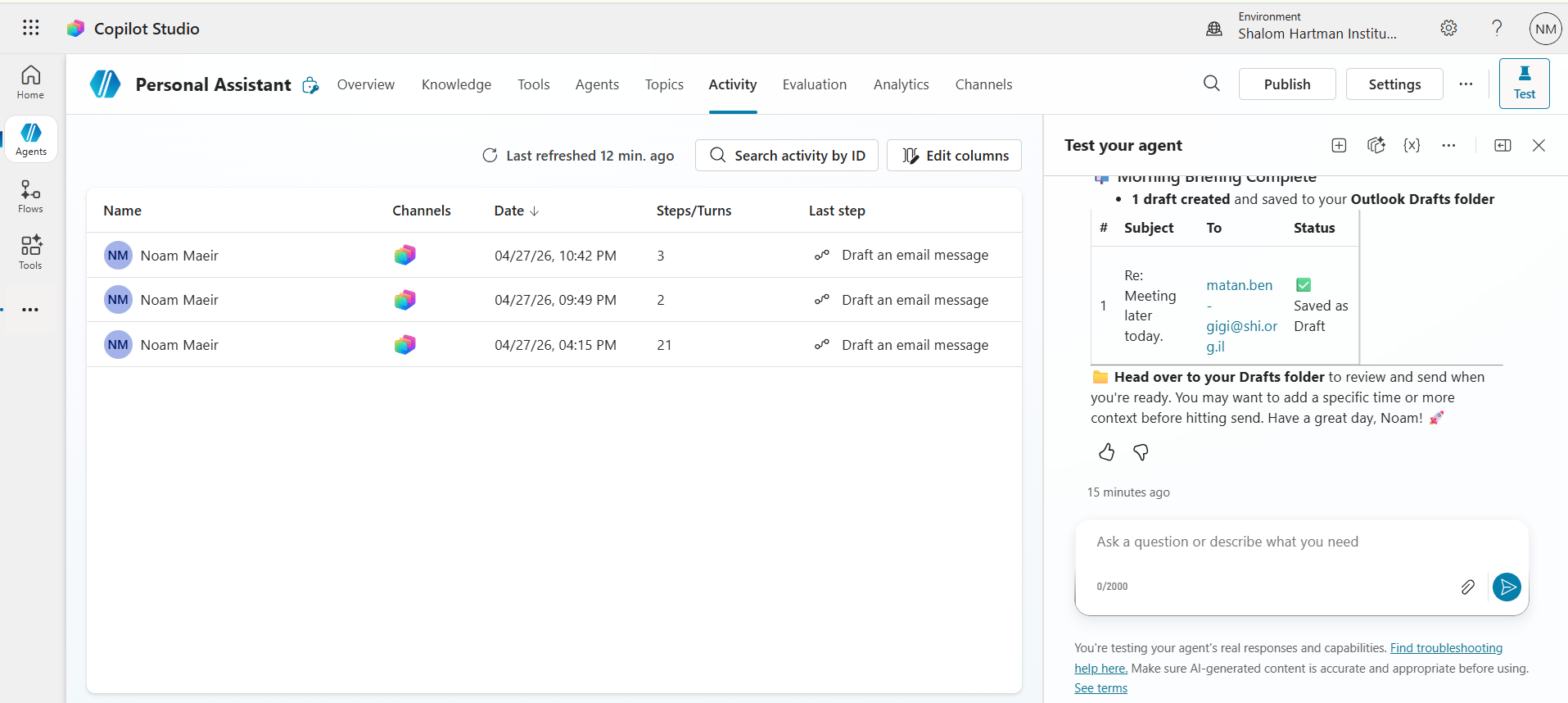
Activity logs every run — both trigger fires and manual chats — with steps, channels, and last action.
Click the run you want to inspect. Top-right → View → Map view. Click each box to see its Inputs and Outputs in the right panel — this is your debugging view.
Tip: if the post is weak, inspect the Work IQ Copilot output first — thin research always produces thin posts. If the research is rich but the post still feels off, inspect the Repurpose Content input next: most quality issues come from the MarCom Personal Assistant passing too little context forward.
Top tab bar → Channels.
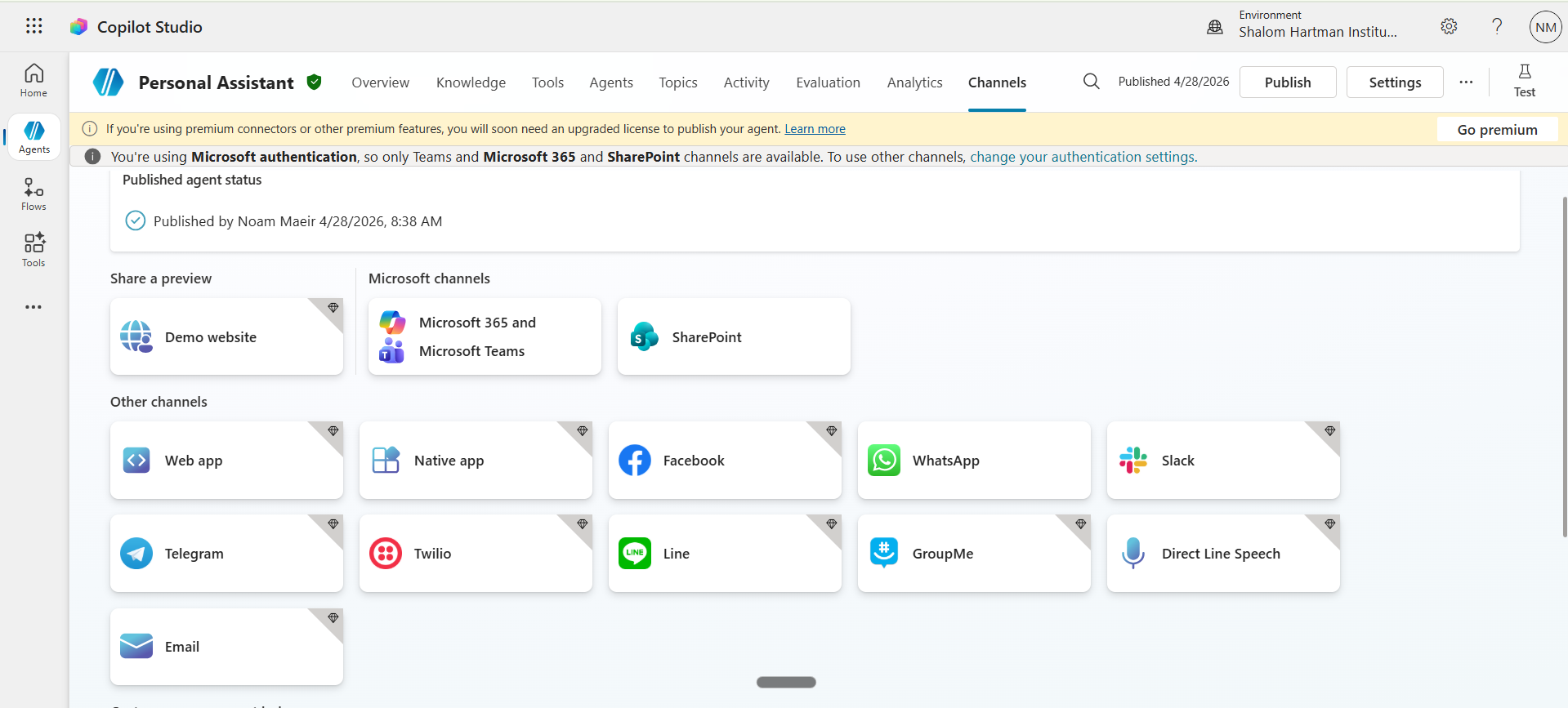
Click the Microsoft 365 and Microsoft Teams tile.
Check Make agent available in Microsoft 365 Copilot → Save.
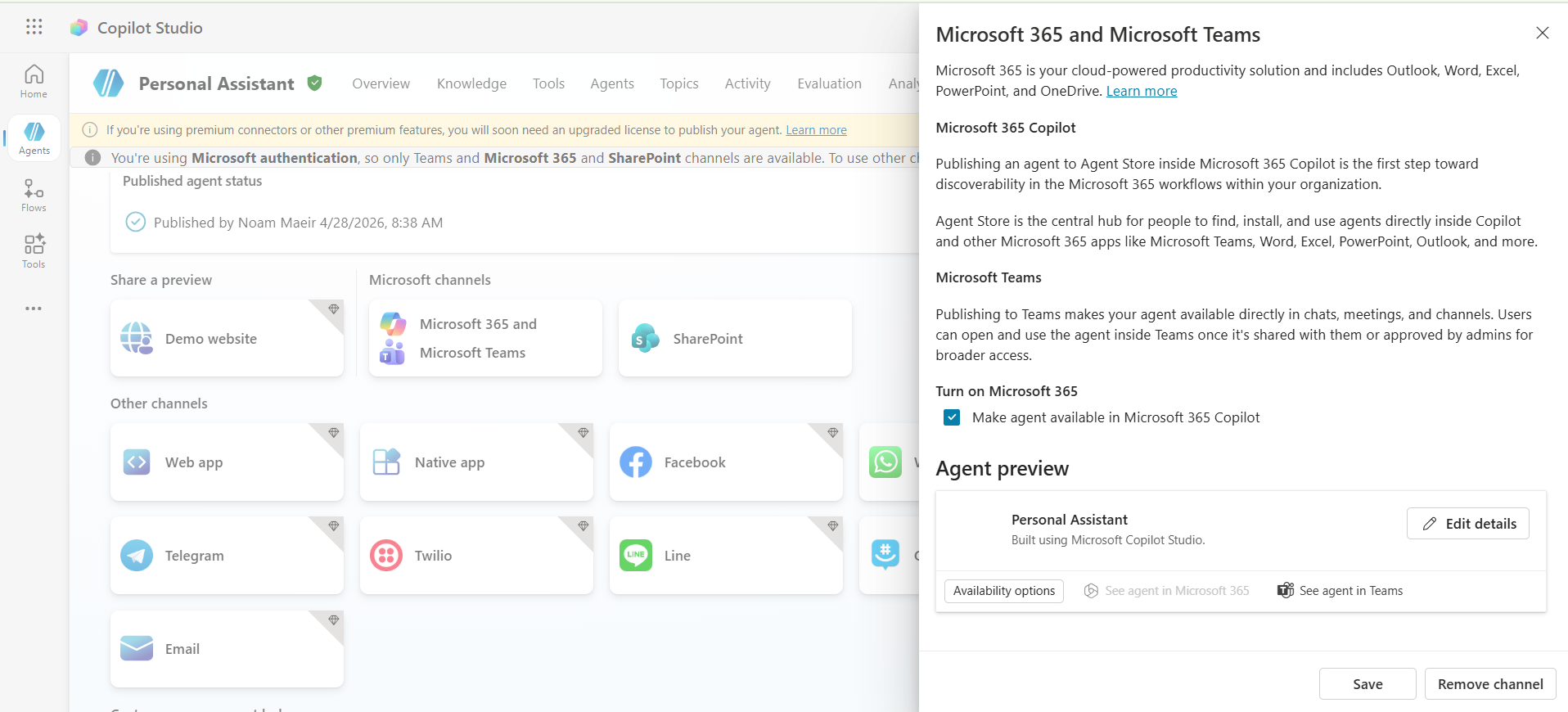
Once saved, click See agent in Teams to open it inside Microsoft Teams.
hartman.org.il, then draft a themed campaign across blog + newsletter + social in one run.Try this for a week: let the daily run land for five mornings. Each day, save one example where the research was rich and one where the final post needed heavy editing. By Friday, paste those notes back into Copilot Chat and refine both the MarCom Personal Assistant's routing rules and Repurpose Content's editorial voice fragment. That feedback loop is how the daily run goes from useful to indispensable.
These aren't work tools. They're wow tools.
No setup, no frameworks — just things that will make you say "wait, AI can do that?"
Live usage analytics from Microsoft 365 Copilot, powered by the Microsoft Graph API. Refreshed once a day.
Aggregating Copilot activity from the last 90 days…
This runs once a day and takes a few seconds the first time.